"We're out of File capacity" is one of those admin emails that always arrives at the wrong time. When I open the capacity report, the culprit is usually the same: years of email attachments synced into Dataverse by server-side sync. Quotes, invoices, phone photos, a 14 MB PowerPoint someone replied-all to.
The obvious fix is a Bulk Deletion job, and that's exactly what Microsoft documents. The catch is that the documented bulk job deletes the email messages themselves, and most teams I work with need to keep the email history for compliance, customer timelines, or just context. The documented way to remove only the attachments is Advanced Find, one email at a time. That doesn't scale past a few dozen.
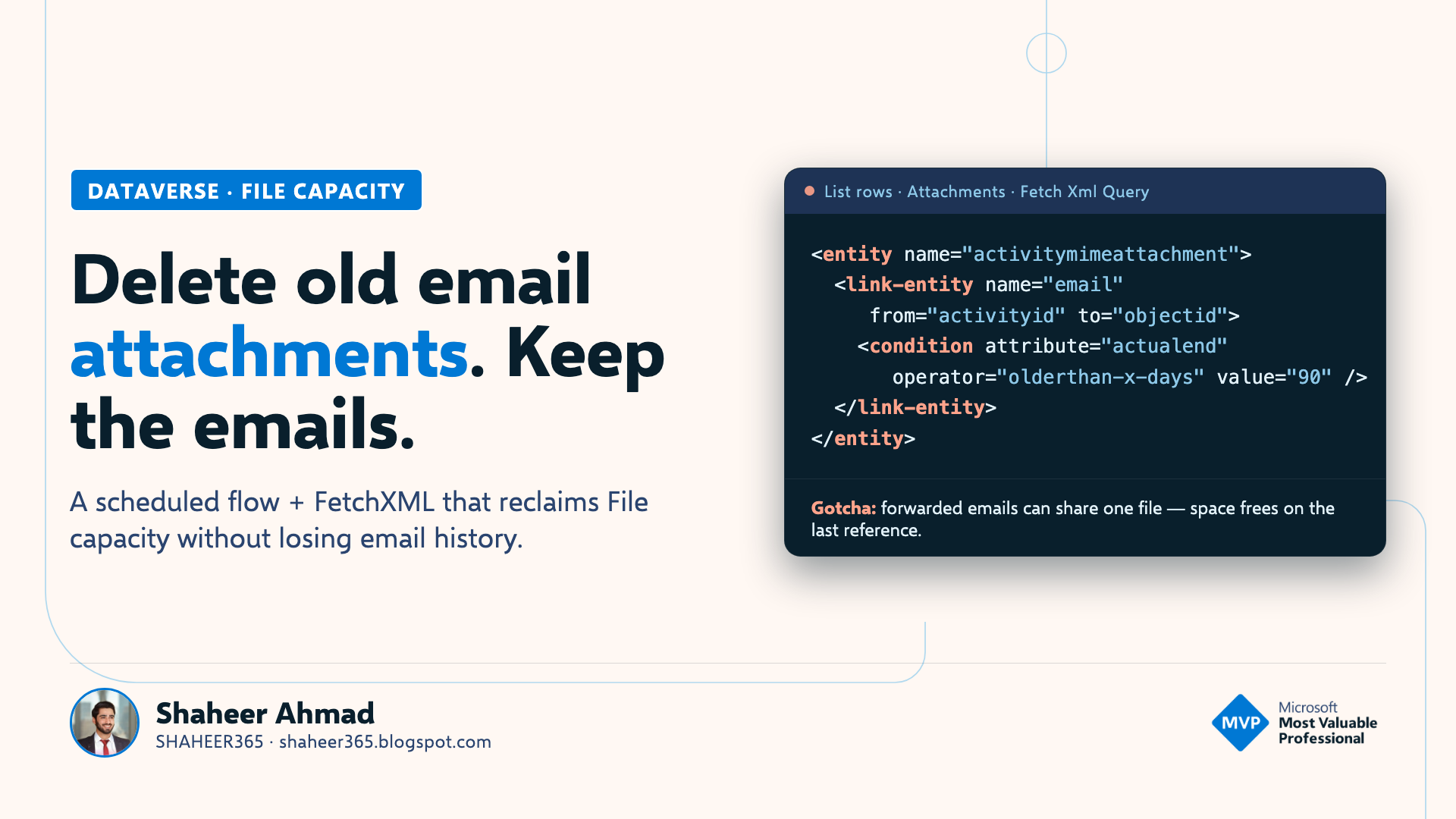
This exact question came up in the Power Platform Community this week, so here's the approach I use: delete the attachment rows directly, filtered by the parent email's date, and leave every email intact.
How email attachments are actually stored
Three tables are involved, and knowing which one to touch is the whole trick:
- Email (
email): the message itself. We keep these. - Attachment (
activitymimeattachment): one row per attachment on an email or email template. Itsobjectidcolumn points to the email, and the file data lives in itsbodycolumn as Base64. This is the table we delete from. attachment: the underlying file record thatactivitymimeattachment.attachmentidpoints to. You can query it, but it doesn't support create, update or delete. You can't clean it up directly.
The relationship between attachment and activitymimeattachment uses a Restrict delete rule, and Microsoft documents that attachment files can be reused by pointing several activitymimeattachment rows at the same attachmentid. That's the first gotcha, and I'll come back to it below.
Prerequisites
- An admin role in the environment (System Administrator, or a role with Delete on the Attachment table).
- A Power Automate license that includes the Dataverse connector. The connector is premium.
- A development or sandbox copy of the environment to try this in first. Deleted attachments can't be restored from Dataverse.
Step 1: Find where the File capacity really goes
Before deleting anything, open the capacity report for the environment in the Power Platform admin center and look at the File breakdown. If Attachment is the biggest consumer, continue. If it's Notes (annotation), Microsoft's documented bulk deletion on Notes by file size and created date (Method 4 in Free up storage space) is the simpler route.
Step 2: Write the FetchXML
The query selects attachment rows whose parent email is older than 90 days. The inner join to email keeps email-template attachments and appointment attachments out of scope:
<fetch top="5000">
  <entity name="activitymimeattachment">
    <attribute name="activitymimeattachmentid" />
    <attribute name="filename" />
    <attribute name="filesize" />
    <link-entity name="email" from="activityid" to="objectid" link-type="inner">
      <filter>
        <condition attribute="actualend" operator="olderthan-x-days" value="90" />
      </filter>
    </link-entity>
  </entity>
</fetch>
Notes on this query:
- Never add the
bodycolumn. It holds the entire file as Base64. Selecting it pulls every file over the wire and can make the flow slow or fail on large files. You only need the ID to delete a row. actualendis the sent or received date. Draft emails don't have one, so drafts are excluded automatically. If you prefer the record creation date, usecreatedon.- To start with the big wins, add a size filter on the attachment itself, for example files over 1 MB:
<condition attribute="filesize" operator="gt" value="1048576" />inside a<filter>on the root entity.
Run it in XrmToolBox FetchXML Builder or a Web API call first, and check the row count and a few file names before you wire up any deletes.
Step 3: Build the cleanup flow
- Create a Scheduled cloud flow (Recurrence trigger). Daily during the backlog cleanup, weekly afterwards.
- Add the Dataverse action List rows. Set Table name to Attachments and paste the FetchXML into Fetch Xml Query.
- Add Apply to each over the
valueoutput of List rows. - Inside it, add the Dataverse action Delete a row. Set Table name to Attachments and set Row ID to:
items('Apply_to_each')?['activitymimeattachmentid'] - Optional: enable concurrency on the Apply to each (Settings → Concurrency control) to speed things up. Keep it moderate so you don't fight your own users for API capacity.
Dry run first. Before adding the Delete step, put a Compose with length(outputs('List_rows')?['body/value']) after List rows and run the flow once. If the number looks wrong, fix the query, not the flow.
Gotchas I'd want someone to tell me
- Shared files don't free space straight away. If an email with attachments was forwarded inside Dataverse, both
activitymimeattachmentrows can point to the same underlyingattachment. Deleting the old one doesn't free the bytes while the newer email still references the file. If capacity barely moves after a run, this is usually why. Widen the date range or accept that recent emails keep those files. - 5,000 rows per run. With
top="5000"each run handles one batch. Let the recurrence keep going until List rows returns zero, then reduce the frequency. - Every delete is an API request. Each Delete a row counts toward Power Platform request limits for the flow owner. For a backlog of hundreds of thousands of attachments, spread the runs over off-hours or use a service account with appropriate capacity.
- The report lags. Microsoft notes the capacity report can take up to 72 hours to reflect deletions. Don't re-run the cleanup at three times the batch size because the number didn't drop by lunchtime.
- Outlook still has them. Users who track emails from Outlook keep their own copies of the attachments in Exchange. Deleting them from Dataverse doesn't touch the mailbox. That's worth saying in the change notice to the business.
- Get sign-off on the retention period. "90 days" is an example. Agree the real number with whoever owns records retention before scheduling this in production.
Wrapping up
Microsoft's documented options give you either "delete the emails" or "click through attachments one by one". Going straight to the Attachment (activitymimeattachment) table with a date-filtered FetchXML gives you a third option: keep the history and reclaim the file storage on a schedule.
If you try this, I'd love to hear how much capacity you got back, and whether you hit the shared-attachment case. Drop a comment, or come talk Power Platform with us at the 365Connect Community.
Comments
Post a Comment